
How (and Why) You Should Export Your LinkedIn Data
Feb 16, 2026
Do you trust that LinkedIn will always be there for you? Many of us treat the platform as our contact list for our connections, assuming we’ll always be able to look up a person and see where they are. But the reality is that relying solely on any third-party platform -- including LinkedIn -- is risky.
Whether it's an accidental account suspension, or a potential change in platform features, losing access to your LinkedIn account could means losing YEARS of connections. To protect your professional network, you need access to your own data.
Here is how to export your LinkedIn information and why it should be a regular part of your business process.
How to Export Your LinkedIn Data: Step-by-Step
LinkedIn provides us the ability to download a copy of our data. Follow these steps to request a full data archive:
- Navigate to Settings: Starting at your LinkedIn homepage. Click on your **Me** icon (the one with your profile photo) in the top menu bar.
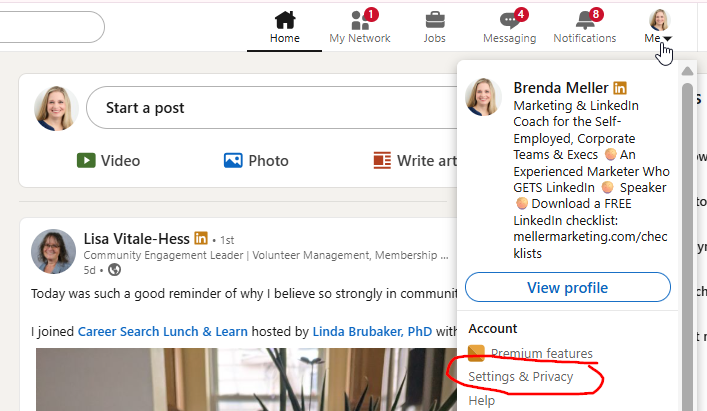
- Access Data Privacy: Under the "Account" section, select Settings & Privacy. Then, in the left-hand navigation menu, click on Data Privacy.
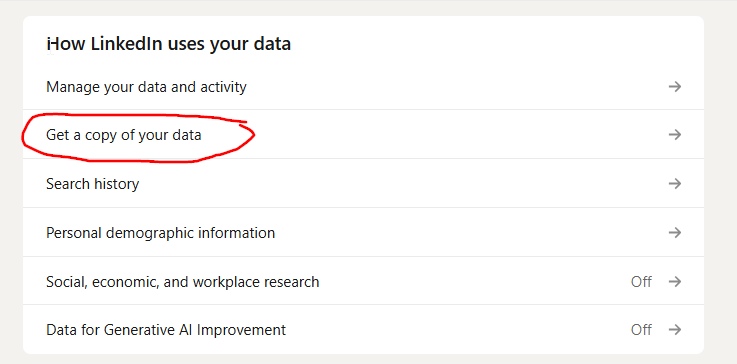
- Request Your Full Data Archive: In the center of the screen, look for the section titled "How LinkedIn uses your data" and click on Get a copy of your data.
- Download Your Data: Inside this menu, you will see two main options:
- Download larger data archive: This includes your connections, account history, and more. This is the option I recommended. It will take about 24 to 48 hours to be ready, and LinkedIn will email you in two batches.
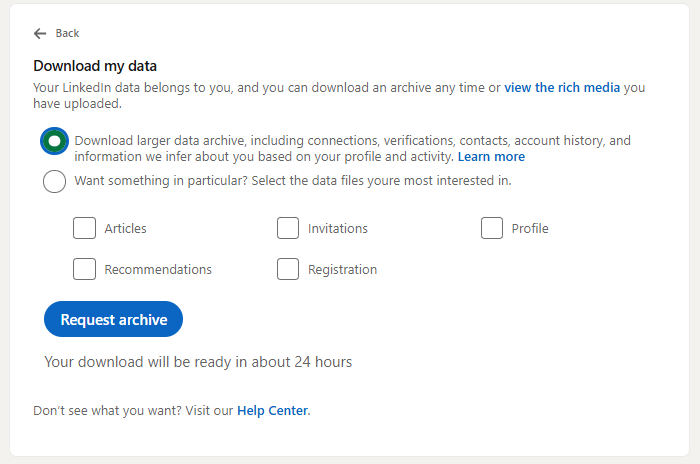
- "Want Something in Particular?" is for specific data files: This usually takes about 10 minutes to process, and only includes data for:
Articles
Invitations
Profile
Recommendations
Registration
- Download larger data archive: This includes your connections, account history, and more. This is the option I recommended. It will take about 24 to 48 hours to be ready, and LinkedIn will email you in two batches.
- Request Archive: I recommend you select Download larger data archive, and then click "Request Archive." LinkedIn will send you an initial email confirming the request.
- Download the Files: Once your data is ready, you will receive an email from LinkedIn with the subject line "**Your full LinkedIn data archive is ready**". Follow the link in the email back to LinkedIn and click **Download data**.
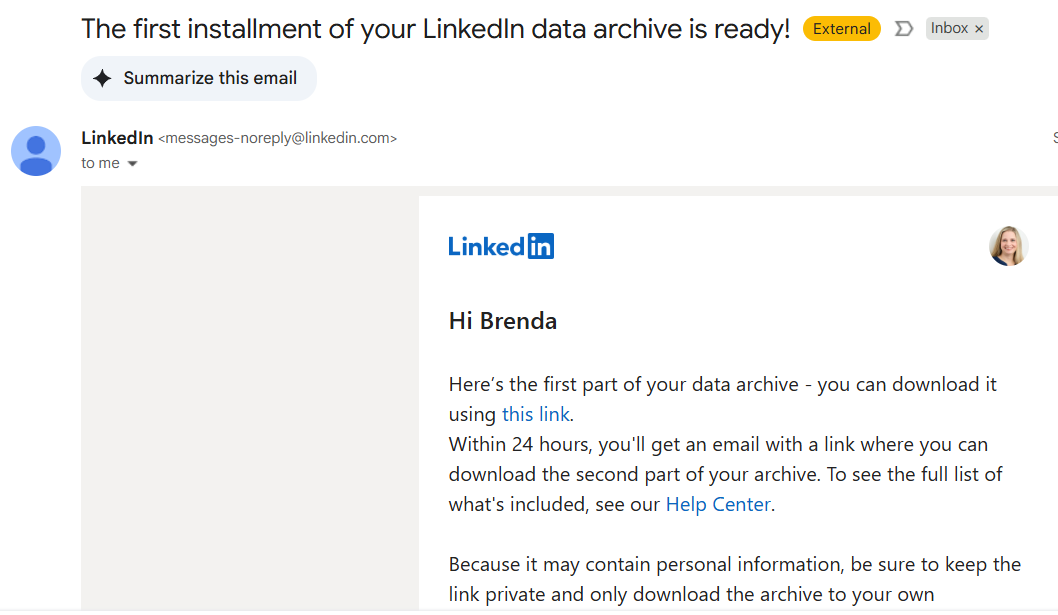
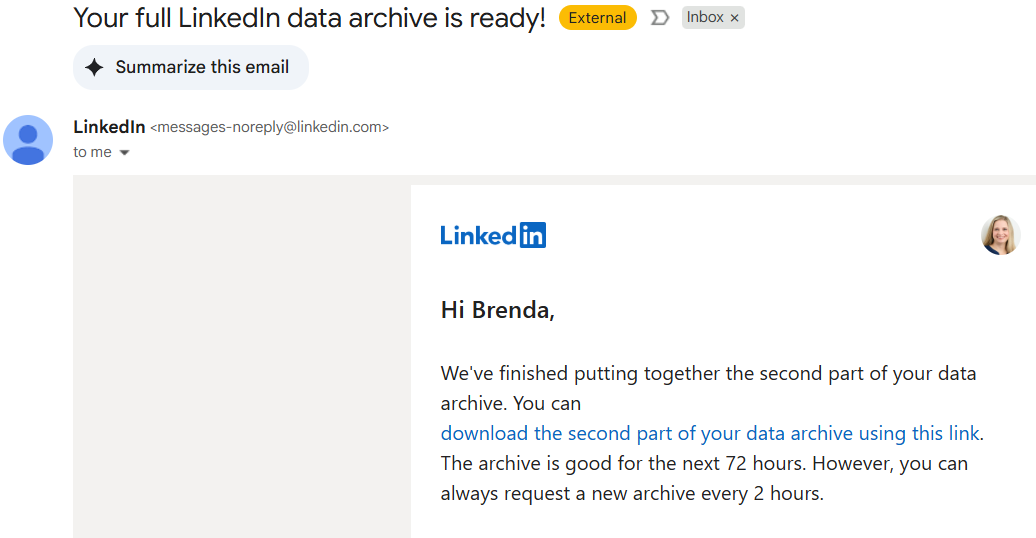
Note: Your download link is only active for 72 hours after the email is sent, so be sure to save it right away. Otherwise, you'll have to go through the process again.
Best Practices for LinkedIn Profile Data Security
Once you receive your data, it will arrive as a zipped file containing several CSV files (which can be easily opened in Excel). From here, I recommend you do this:
- Create a Dedicated Folder: Set up a folder on your computer named "LinkedIn Data Export" to store your data archives. There's a good chance you'll never need it, but if you have it handy and you lose access to your LinkedIn account, you'll be glad you have your data!
- Establish a Schedule: I recommend you do a full data export at least once a year. Or, if you're a heavier LinkedIn user, do a full data export once per quarter.
Above all - Don't Wait for an Emergency! If LinkedIn were to disappear tomorrow, or if you were accidentally locked out of your account, having this backup ensures you don't lose your entire professional history.
Here's a Video Showing Each Step in this Process
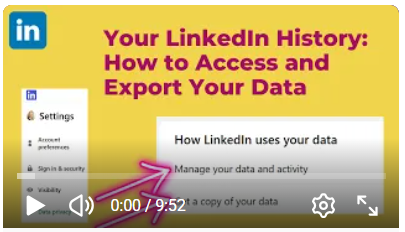
https://youtu.be/ckuMr-ntZc4?sub_confirmation=1
Need more help? I do offer 1-to-1 LinkedIn coaching services.
Visit this to learn more:
mellermarketing.com/1-to-1-linkedin-coaching
